The most common reason an old laptop sits in a cupboard for years is not laziness. It is that nobody is quite sure what is still on it, and getting rid of it feels risky.
That instinct is right. A laptop you used for five years has your email, your banking sessions, your photos, saved passwords and probably tax documents on it. Handing that to a stranger without thinking about it is a bad idea.
Here is how to deal with it properly, depending on whether the machine still switches on.
Deleting files does not remove them
Start with the thing most people get wrong. Dragging files to the Recycle Bin and emptying it does not erase anything. It marks the space as reusable and leaves the data sitting there until something happens to write over it. Recovery software that anyone can download will pull most of it back.
Formatting a drive the quick way has the same problem. A quick format rewrites the index, not the contents.
What actually works is either a full factory reset with the erase option turned on, or physical destruction of the drive. Which one you use depends on the machine.
If the laptop still switches on
This is the easy case and it takes about an hour of waiting, most of which is unattended.
Step one: get your files off. Copy anything you want to a external drive or to cloud storage. Check the obvious places and then check Downloads, Desktop, and any folder you made years ago and forgot. Once the reset runs there is no going back.
Step two: sign out of everything. This matters more than people realise. Sign out of your Google or Microsoft account, your browser profile, and any password manager. On a Windows machine, unlink it from your Microsoft account in Settings. On a Mac, sign out of iCloud and turn off Find My before you reset, or the machine stays activation-locked and becomes much harder to refurbish.
Step three: reset with the erase option.
- Windows 10 or 11: Settings, System, Recovery, Reset this PC. Choose Remove everything. When it offers to clean the drive, say yes. That option is the one that overwrites rather than just deleting, and it is why the process takes an hour or more instead of ten minutes.
- macOS: Settings, General, Transfer or Reset, Erase All Content and Settings. On Apple silicon and on anything with a T2 chip the drive is encrypted already, so this destroys the key and the data becomes unreadable in seconds.
- Linux: boot from a USB stick and run
shredornvme formatagainst the drive, or use the drive's own secure erase.
If the drive is an SSD, which almost every laptop from the last eight years has, the built-in secure erase is genuinely secure. SSDs encrypt by default at the controller level and secure erase throws away the key.
If the laptop does not switch on
You cannot reset a machine that will not boot, so the drive has to come out or be destroyed.
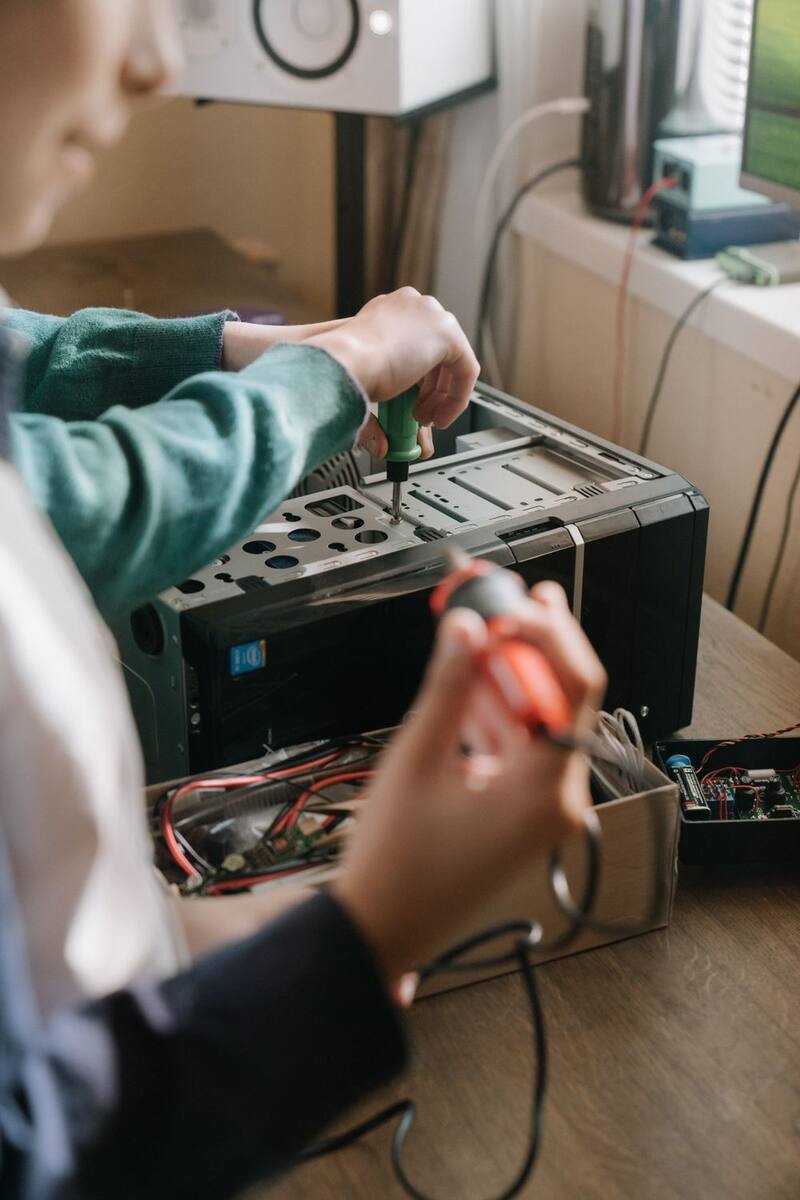
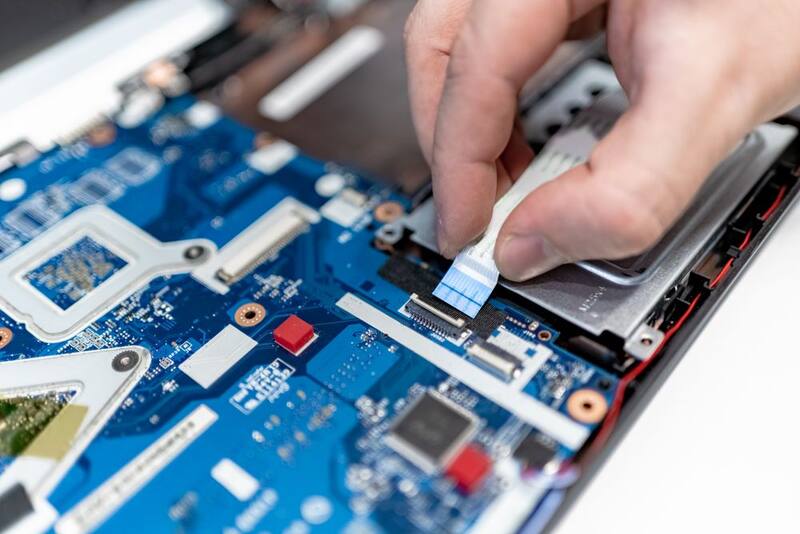
Take the drive out and keep it. On most laptops this is four to eight screws on the base panel and one more holding the drive. A 2.5 inch SATA drive looks like a small metal brick. An NVMe SSD looks like a stick of gum. Both pull out easily once the panel is off. Keep it in a drawer, or put it in a cheap USB enclosure and wipe it from another computer later.
This is the option we recommend most often. It costs you nothing, it takes ten minutes, and it means the question is settled before anyone else touches the machine.
Or have it destroyed. If you would rather not open the laptop, we can remove the drive at pickup and destroy it. Physical destruction means the platters or the chips are damaged past the point of reading. For a business clearout we can give you a record of what was destroyed and when.
What not to do: hitting a drive with a hammer is less effective than people think, especially on an SSD, where the data sits in chips that survive a dented case. Drilling through a spinning drive works. Microwaving anything is a fire risk and does not reliably destroy the chips.
The parts people forget
The main drive is not the only place data lives.
- A second drive. Plenty of laptops shipped with a small SSD for Windows and a larger hard drive for files. Check for both.
- SD cards. Still sitting in the slot on the side more often than you would expect.
- Old phones in the same drawer. If you are clearing out a laptop you are probably clearing out phones too. Same rules apply: sign out of the account, then factory reset.
- Printers. Office printers store scanned documents on an internal drive. If a printer is going, that drive needs the same treatment.
- Routers. They hold your wifi password and sometimes your ISP login. Factory reset them with the pinhole button.
For offices
If you are clearing out twenty or forty machines rather than one, the process is the same but the record keeping matters more. What you want at the end is a list: which machines left, on what date, and what happened to each drive.
We can pull and destroy drives on site so nothing with data on it leaves the building, and give you the item list and dates afterwards. If your auditors need something specific in that record, tell us before the pickup rather than after.
One thing we will not claim: we are not a certification body and we do not issue compliance certificates. What we give you is a factual record of what we collected and what we did with the drives.
Then get it collected
Once the data question is settled, the rest is simple. A wiped laptop is worth the same as an unwiped one, so there is no reason to hand one over before you are ready.
We collect from doors across Hyderabad and Bengaluru. Pick a slot, we come to you, the price is agreed in front of you before anything is loaded, and you are paid on the spot. Coming to collect costs you nothing.
Book at scrapwise.in or message +91 99931 99945. If you want the drive pulled and destroyed at pickup, say so when you book so we bring the tools.